TikTok Transcript
Loading

Video Transcript Generator: Turn Your Video into Text

Upload a video, read the spoken words, and copy or download your transcript for the next task. Bring a recorded lesson, interview, or clip to TikTok Transcript. Use the video transcript generator to create a written starting point you can check, save, and work from.

Sign in to transcribe. New users get 5 free credits.

Upload your file

MP4, MOV, WebM, MP3, WAV, M4A and more

Duration is read from the video. 1 credit per 100 seconds.

Use a video or audio file you are allowed to process, or a direct HTTPS media URL. A social media watch page may not work.

What Is a Video Transcript Generator?

A video transcript generator converts spoken audio into written words you can read without replaying every sentence. A video transcript is a text record of speech in a recording. It helps you review what someone said, locate a passage, and carry the wording into your own notes.

When you convert video to text, the spoken content becomes the starting material. A transcript does not automatically explain a chart, describe a silent demonstration, or turn a long discussion into a short summary. Keep the original video nearby when the visuals matter.

This transcript generator gives you text to read, copy, or download. For notes and quotations, choose TXT. For a subtitle workflow, VTT can carry timing information when that information is available. You still need to review the words and, for subtitles, check that they match the audio.

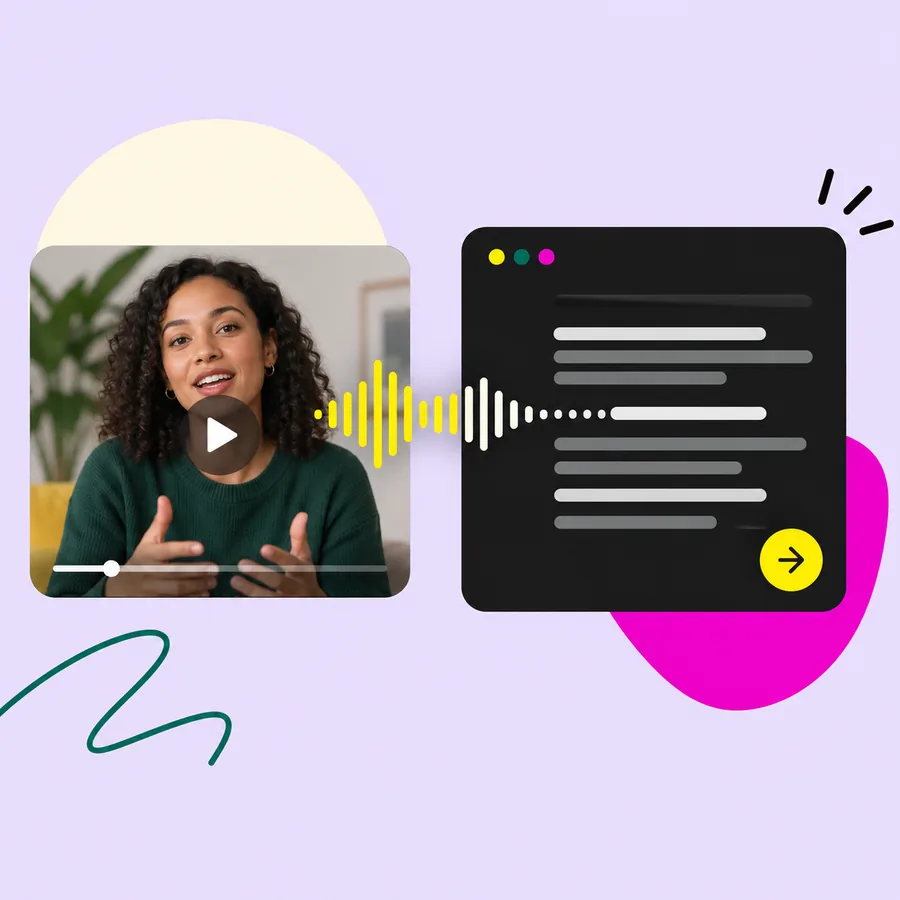
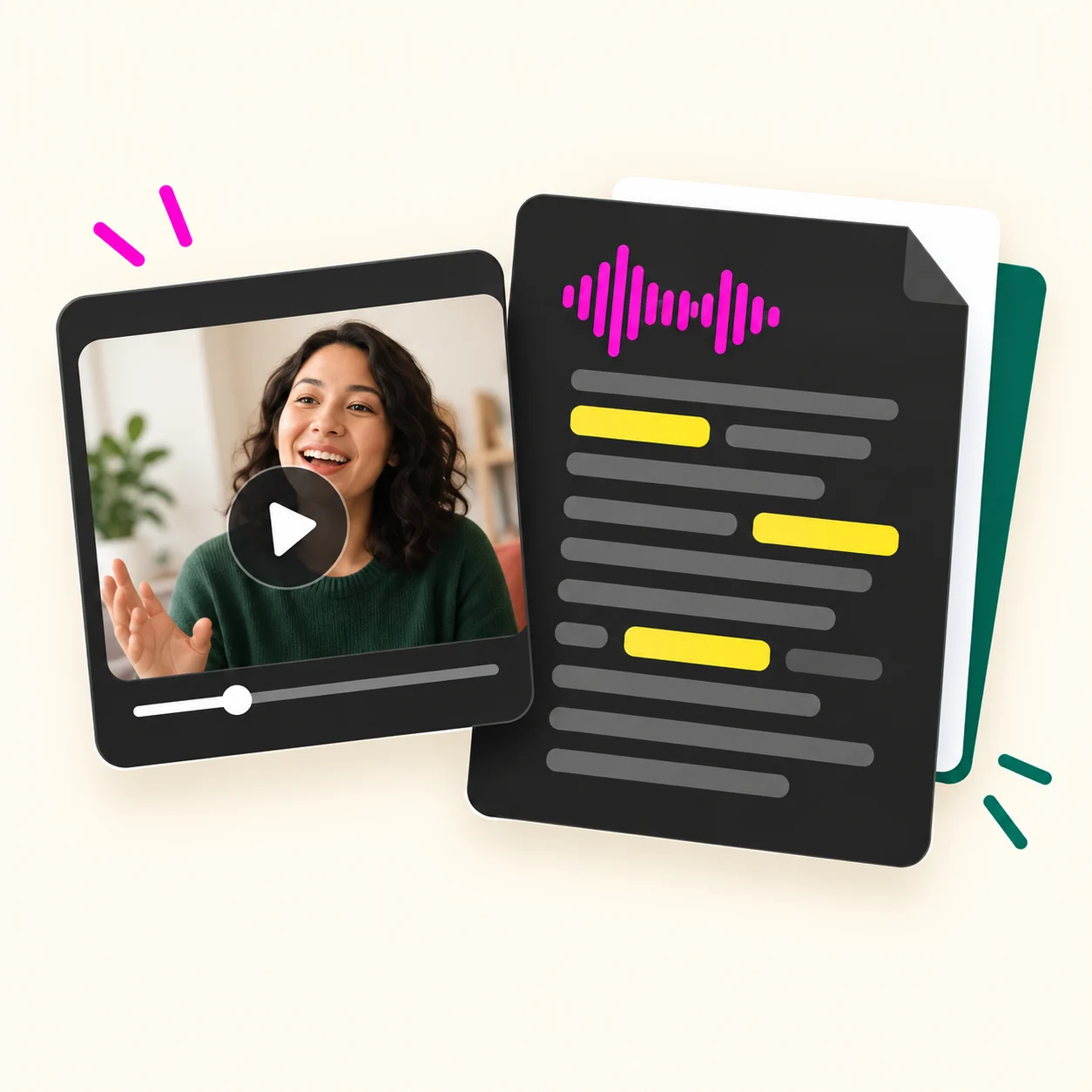
Video player beside a written transcript

Video Transcript Generator Features

Move from an accessible recording to text you can take into your own document or subtitle workflow. Start with the source you have, then choose the output you need. The video transcriber keeps the main job focused on getting spoken words into a usable text format.

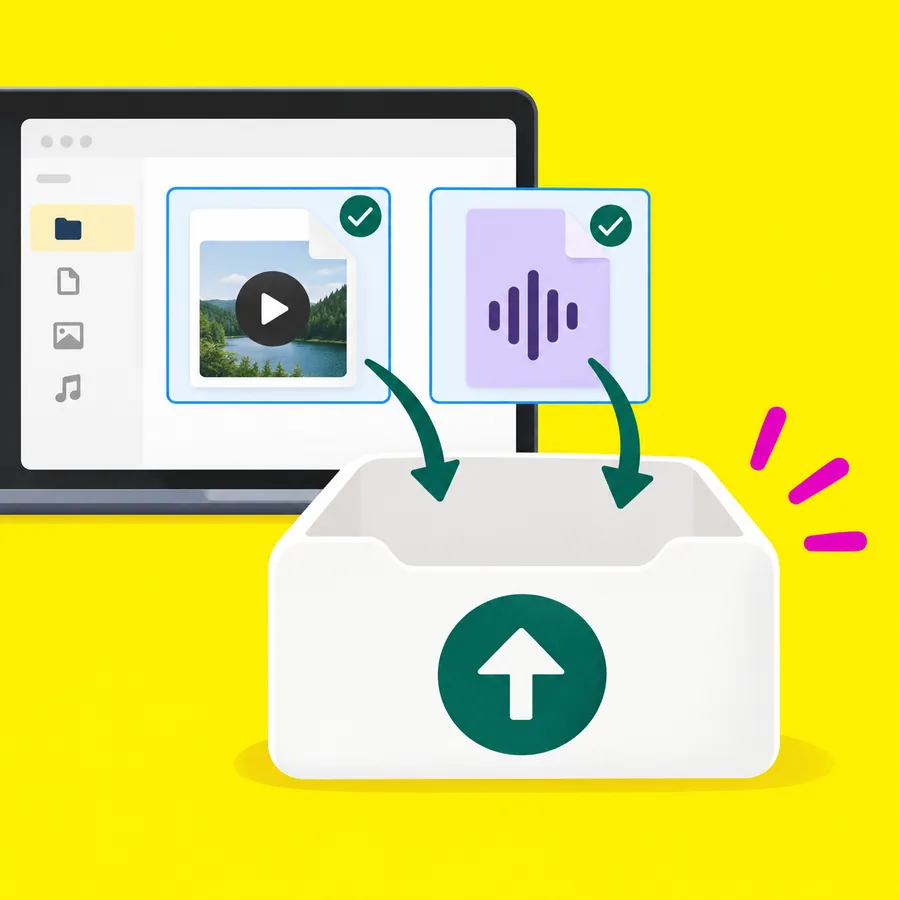
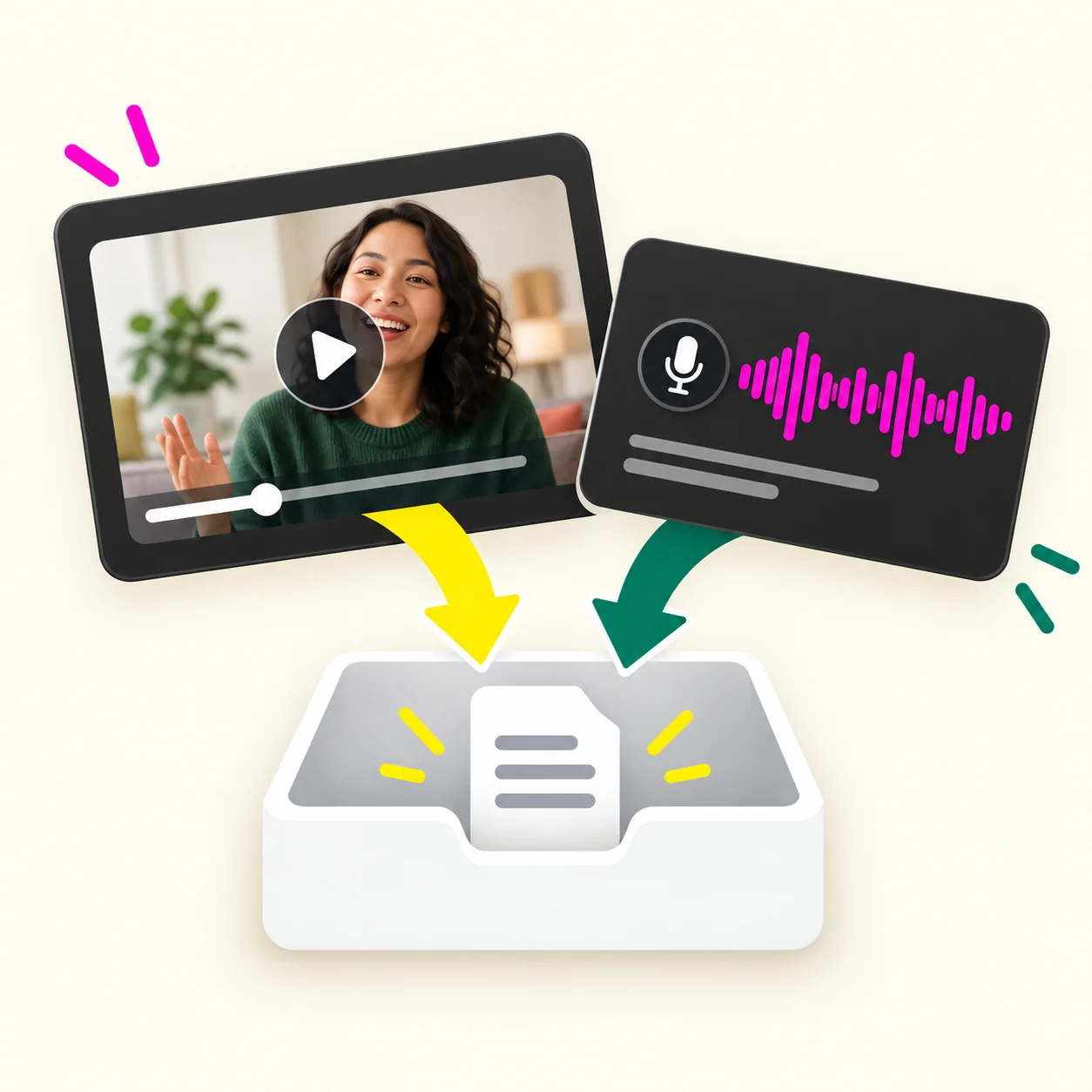
Video and audio files entering an upload tray

Upload a video or audio file

Choose a recording from your device. The file picker accepts formats including MP4, MOV, WebM, MP3, WAV, and M4A. Your file needs a readable audio track containing the speech you want to transcribe. If the recording cannot be opened or its duration cannot be read, check the source file before trying again.

Accessible video media link connected to a player

Use an accessible media link

You can submit an HTTPS video or audio source URL. A direct media file and a page containing a video are different inputs. If a webpage link cannot be processed, use an accessible copy of the recording and upload it instead.

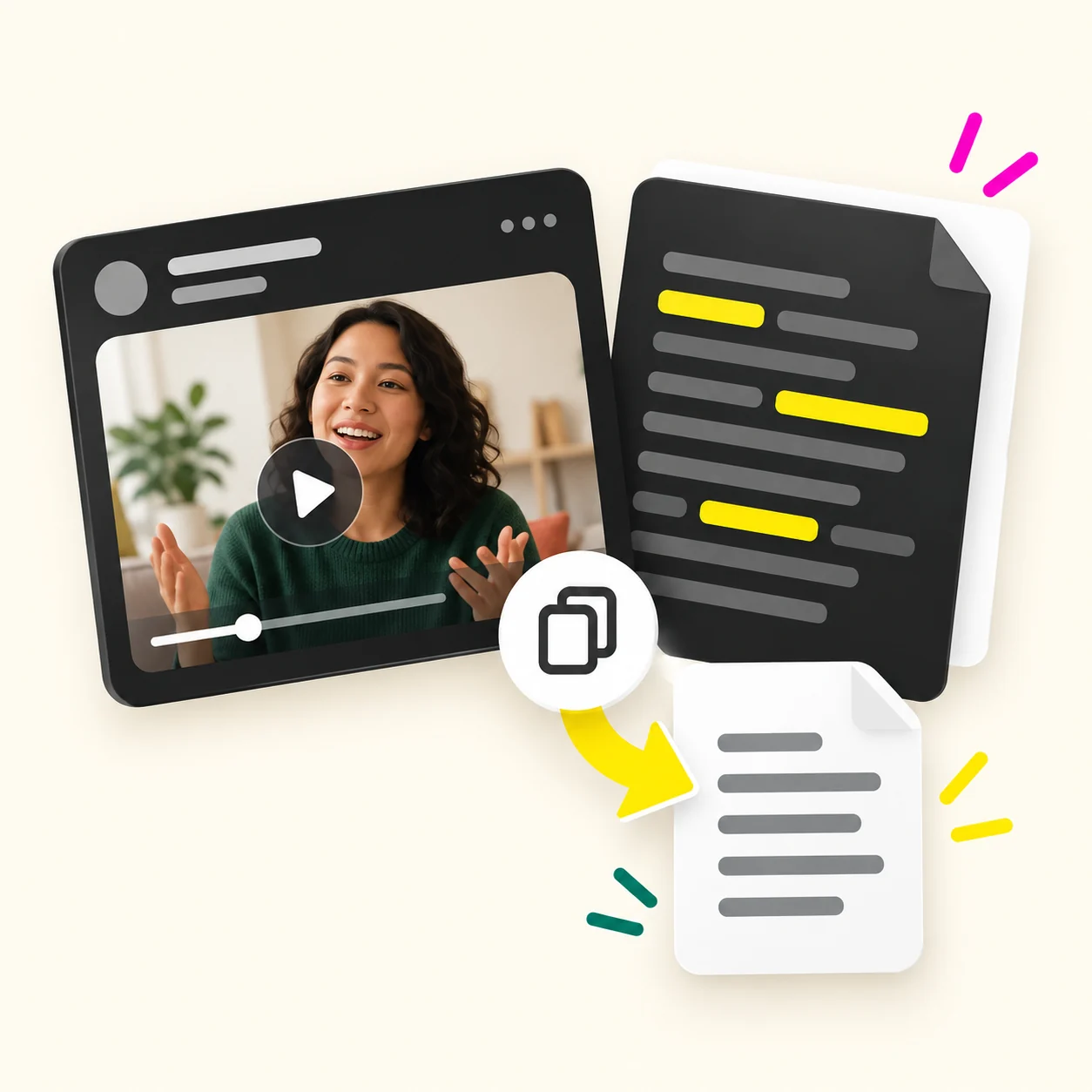
Transcript text copied from a video into a document

Copy a transcript from video

Read the result on screen, then use Copy text to move it into a document. Review names, figures, and unfamiliar phrases against the recording. Make your corrections in the document where you plan to use the text.

Transcript document ready to download

Download text for later

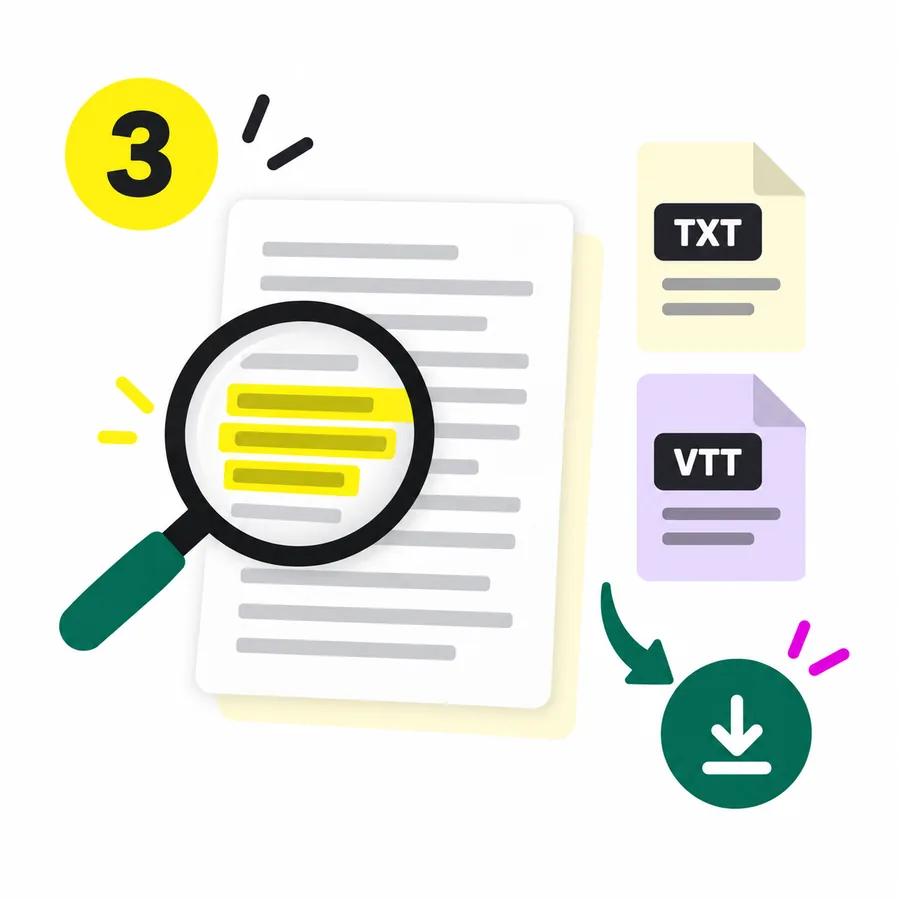
Save a TXT file when you want a written reference outside the browser. You can open that file in your usual text editor, add your own headings, and keep it with the source recording. Those edits remain under your control.

Timed subtitle cues beside a video player

Export timing when available

The video transcript generator includes a VTT download option. Timed cues depend on timing data being returned with the transcript. Check that the file contains cues before importing it into a subtitle tool; a plain transcript alone does not establish subtitle timing.

What Can You Create from Your Video Transcript?

Keep the original wording as text, prepare a reference document, or continue into a separate subtitle editor. Choose the output around what happens next. A video transcript generator gives you the words; you decide how to organize, quote, or adapt them after checking the recording.

01

A plain text transcript

Download the spoken content as TXT. Save it beside the video with a name that identifies the recording, so the source and its text remain easy to find together.

02

A document you can annotate

Copy the result into your writing app. Add headings, comments, and links to supporting material yourself. Keep your notes separate from the speaker's original wording.

03

A starting point for subtitles

Use VTT when the result includes timestamps. Open the file in a compatible subtitle tool to review its timing and readability before using it with a finished video.

04

Source material for a new draft

Select checked passages for an outline, lesson note, or content brief. Writing that new document is your next step; the transcript itself is not an automatically generated summary.

Who Is This Video Transcript Generator For?

Use the text as a reference when your work starts with a recorded explanation, conversation, or presentation. You may need the exact wording, a passage to revisit, or material for a separate draft. Video transcription gives you a written layer to work with alongside the recording.

Person reviewing a recorded lesson

Creators reviewing recorded content

Read your spoken introduction and look at how the explanation develops. Copy useful passages into a draft, then rewrite them for the format you are making. Keep any quote tied to its original context.

Students working from recorded lessons

Use a video transcript to revisit terminology and build your own study notes. When a speaker points to a diagram or demonstration, return to the recording. The text captures speech, so the visual example may still be essential.

Researchers checking interviews

Bring the transcript into a document where you can annotate it. Listen again before treating a passage as an exact quotation. Add your own labels and source details so later readers can distinguish the interview wording from your interpretation.

How to Use the Video Transcript Generator

Sign in, add your recording, generate the text, and save the output that fits your next task. Start with a recording you can open and hear clearly. To get a transcript from video, use the upload option or provide an accessible direct media URL.

  1. Choose your recording

    Select the video or audio file from your device. Check that it contains the speech you need. For a URL, use an HTTPS source the service can access.

  2. Sign in and start transcription

    Submit the source through the video transcript generator. The stated rate is 1 credit per 100 seconds. Processing time can vary, so wait for the completed result before moving to the next step.

  3. Review the wording

    Read the transcript alongside the recording. Give names, numbers, and unclear passages extra attention. Copy the text into your editor to make any corrections you need.

  4. Save your result

    Copy the text or download TXT. Choose VTT for a timed subtitle workflow only when timing information is available. You now have a text record to continue working with in your own tools.

Video Transcript Generator Pricing

Start with 5 free credits as a new user, then buy a one-time credit pack when you need more. The video transcript generator uses credits for transcription. The published rate is 1 credit per 100 seconds, so the amount you need depends on recording duration rather than file count.

Basic

$9.9

990 credits

  • 990 credits
  • $0.01000 per credit
  • 1 credit per 100 seconds
  • One-time purchase
  • Smallest upfront purchase
Recommended

PRO

$29.9

3,700 credits

  • 3,700 credits
  • About $0.00808 per credit
  • 1 credit per 100 seconds
  • One-time purchase
  • Lower price per credit than Basic

Business

$49.9

12,400 credits

  • 12,400 credits
  • About $0.00402 per credit
  • 1 credit per 100 seconds
  • One-time purchase
  • Lowest price per credit

Choose Basic for the smallest upfront purchase. PRO and Business include more credits at a lower price per credit. A larger pack changes how much transcription credit you buy; it does not promise a different level of accuracy.

The free credits let you try the workflow before deciding whether to buy a pack. Sign-in is required. The allowance is limited, so it should not be treated as unlimited free transcription. See the pricing page for the current packs before you purchase.

Video Transcript Generator FAQ

Check the input requirements, free allowance, and export options before choosing how to transcribe your recording. These answers cover the decisions that matter before you start. Match the recording you have to the text you need, and keep the original available while reviewing the result.

Is this video transcript generator free?

New users get 5 free credits, and sign-in is required to submit a transcription. After the allowance is used, you can buy a one-time credit pack. The published rate is 1 credit per 100 seconds of recording. This is a limited starting allowance, so longer or repeated transcription work may require a purchase. Review the pricing page before choosing a pack. Start with a recording that represents the work you plan to do, then check the resulting text before deciding how much credit you need.

How do I turn a video into a transcript?

Upload a readable video file, sign in, and start the transcription. When the result is ready, read it on screen and copy or download the text. Keep the recording available so you can check unclear passages. Names, numbers, and specialist terms deserve a second listen before you quote them. If you want to edit the wording, copy it into your usual writing app. Save the original transcript separately when you also plan to write a summary, so you can distinguish the recorded speech from your own interpretation.

Can I use the video transcript generator from link input?

You can submit an accessible HTTPS audio or video source URL. A social media watch page is not always a direct media source, so a link that plays in your browser may still fail here. If that happens, upload a video file you can access and use. The tool does not promise access to every webpage or private recording. Check that you have selected the intended source before submitting it. Once the text is ready, compare a short passage with the recording to confirm that it matches your file.

Is this a video transcript generator with timestamp support?

VTT export can include timed cues when timestamp data is available in the transcription result. If that data is missing, the downloaded file may not contain usable subtitles. Check the VTT file in a compatible subtitle editor before relying on it. TXT is the option for a plain written transcript without subtitle formatting. A subtitle workflow also needs you to review the wording and timing against the audio. Downloading VTT does not add captions to the video itself; use a separate editor for that final step.

Can I transcribe a video to text?

Yes, you can upload a supported video file containing speech and generate a text transcript. The file picker accepts common formats including MP4, MOV, and WebM, as well as audio formats such as MP3 and WAV. The recording must be readable for transcription to proceed. Speech transcription should not be treated as a description of silent scenes or a way to extract every word shown on screen. If a speaker refers to a visual example, watch that part of the source when reviewing the text. Keep those visual notes separate from the transcript.

Can I edit or summarize the result?

You can copy the transcript or download TXT, then edit it in your own writing app. This workflow does not include an automatic summary or an inline text editor. To make a shorter version, read the transcript, choose the relevant points, and write your summary separately. Check it against the recording before sharing it. If exact wording matters, mark a passage as a quotation only after listening to it again. A transcript gives you source material to work from; you decide which words belong in your finished document.

Put Your Video Transcript to Work

Bring a recording to the video transcript generator and leave with words you can review, copy, and save. Start with the video you already have. Generate the text, check the passages that matter, and take the result into your notes, draft, or subtitle workflow.

New users get 5 free credits. Sign in to start.