TikTok Transcript
Loading

Instagram Transcript Generator

Turn a saved Reel or direct media URL into a transcript. Review the words, then copy or download the text.

New accounts get 5 free credits. An Instagram post link is not a guaranteed input; upload the media file to get started.

Paste a link

Paste a public video link from one of these platforms or a direct HTTPS media URL.

  • TikTok
  • YouTube
  • Facebook
  • Instagram

Some private or restricted videos may still require a file upload.

Duration is read from the video. 1 credit per 100 seconds.

Upload a Reel video file or use a direct HTTPS media URL. An Instagram post link is not a guaranteed input.

What Is an Instagram Transcript Generator?

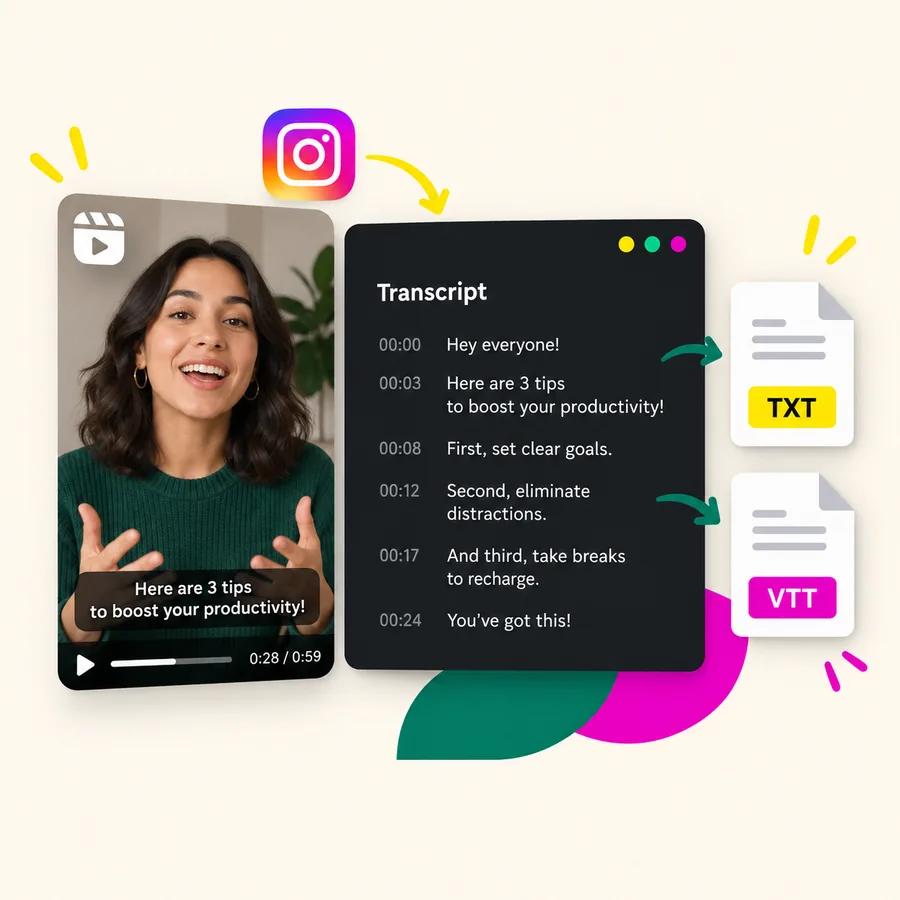
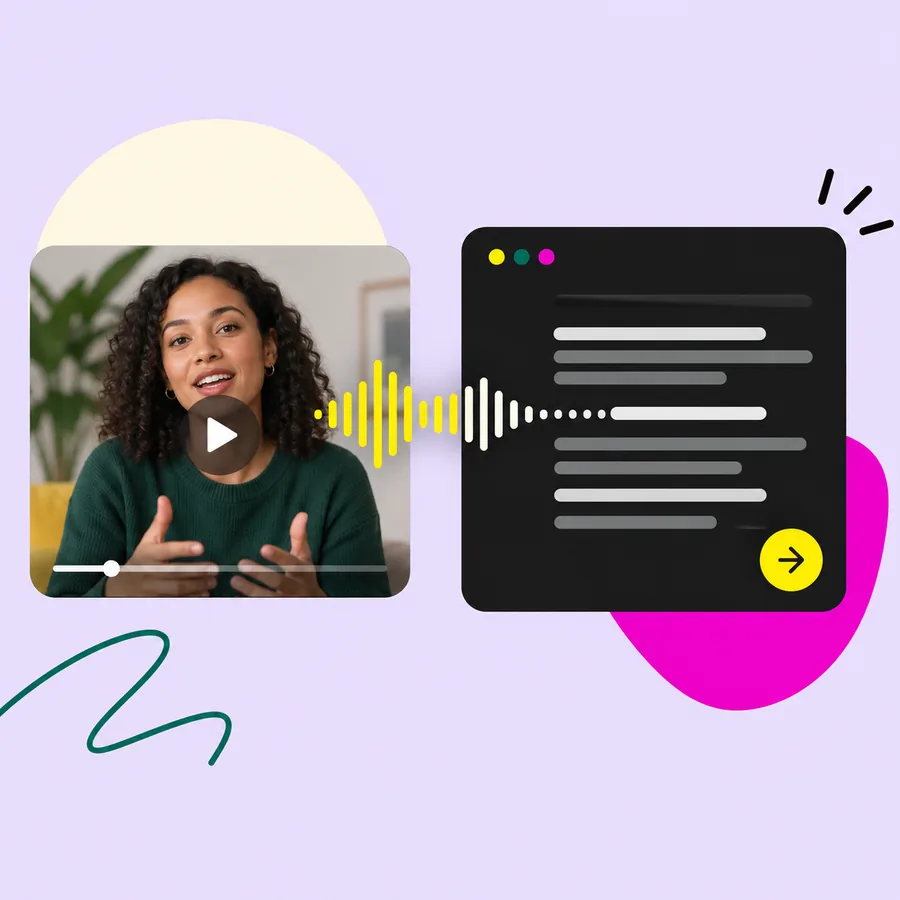
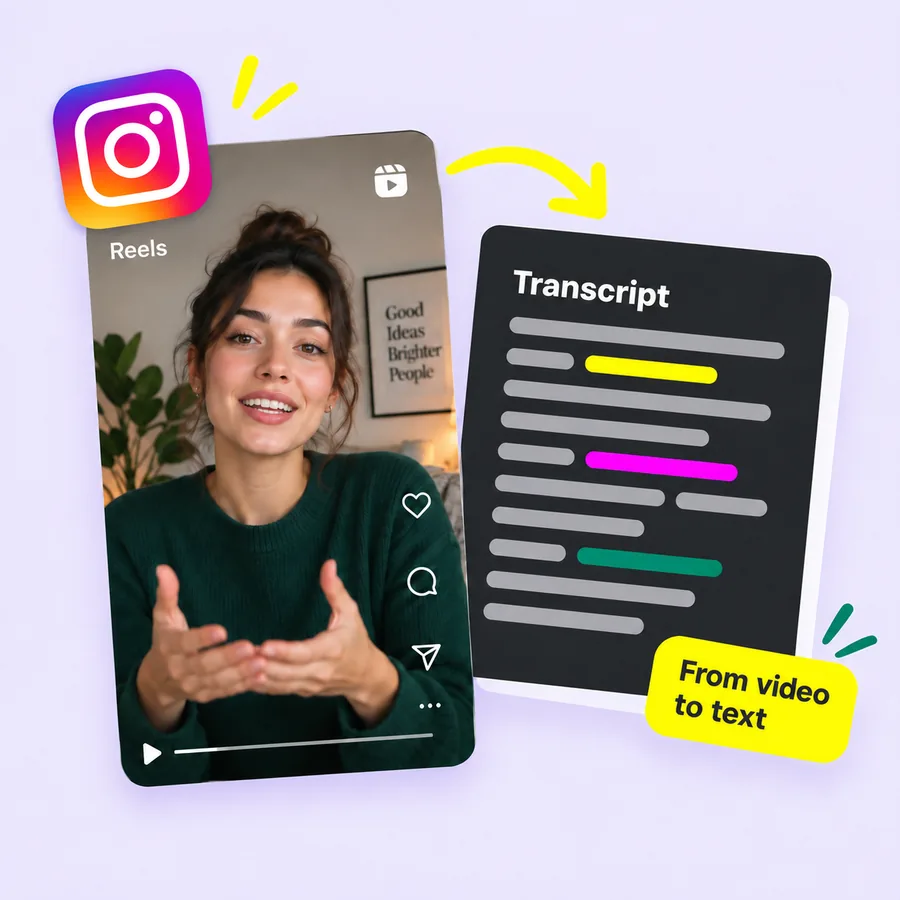
It turns the spoken words in an Instagram video into a written transcript you can read. An Instagram transcript generator converts video speech into text. The result gives you a written record of what was said, which you can review alongside the original recording.

An Instagram transcript is different from a post description. It follows the speech in the recording, while a post description may contain a short introduction, hashtags, or a separate message. A transcript also differs from words added as visual overlays; those words may never be spoken aloud.

With TikTok Transcript, you supply the recording as a file or a reachable HTTPS media source. The tool processes the audio and returns text. Use that text as a draft to check, rather than assuming every name, number, or unfinished sentence has been captured exactly.

Instagram Reel beside a spoken-word transcript

Instagram Transcript Generator Features

Keep the workflow focused on the recording, the spoken words, and the format you need next. Move from Instagram video to text using a source you already have. The available input and export options help you choose a practical route before starting a transcription.

Upload your existing recording

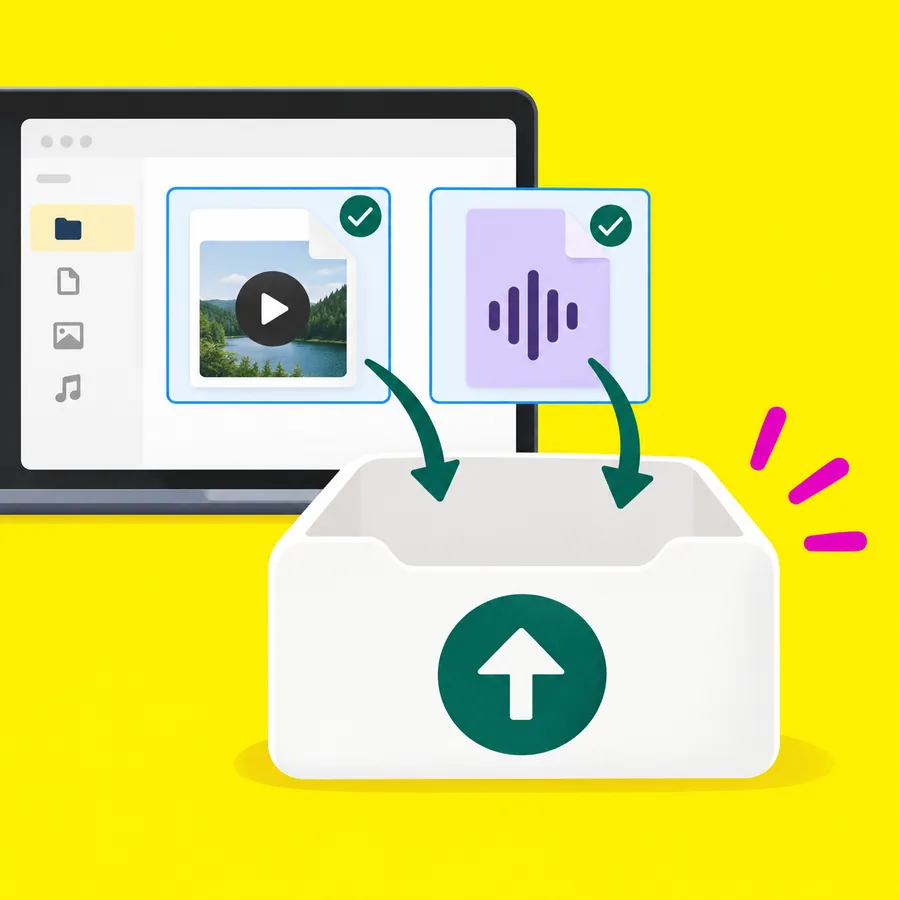
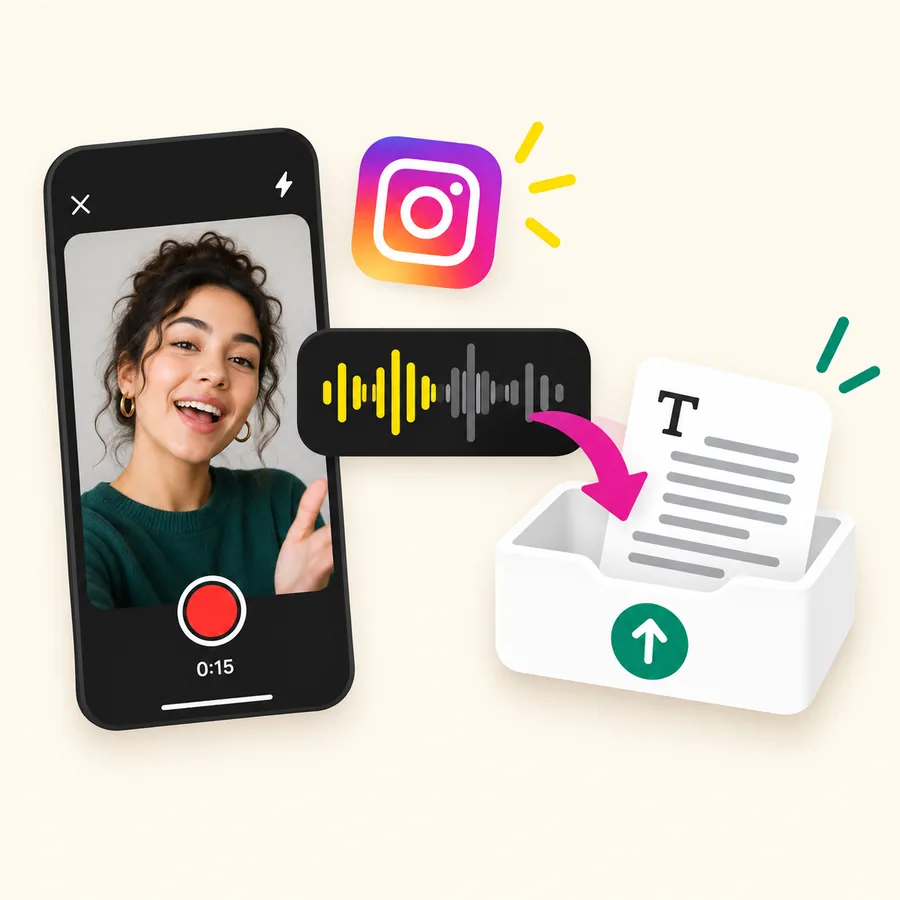
Choose a supported video or audio file from your device. The upload field accepts formats including MP4, MOV, WebM, MP3, WAV, and M4A. Start with the original recording when you have it, and check that it plays with audible speech before submitting it.
Use a direct media link

You can also enter an HTTPS audio or video source. It needs to lead to media the service can access. A social post page is a different kind of address, so do not treat an Instagram share link as a confirmed substitute for a media file.

Copy the returned text

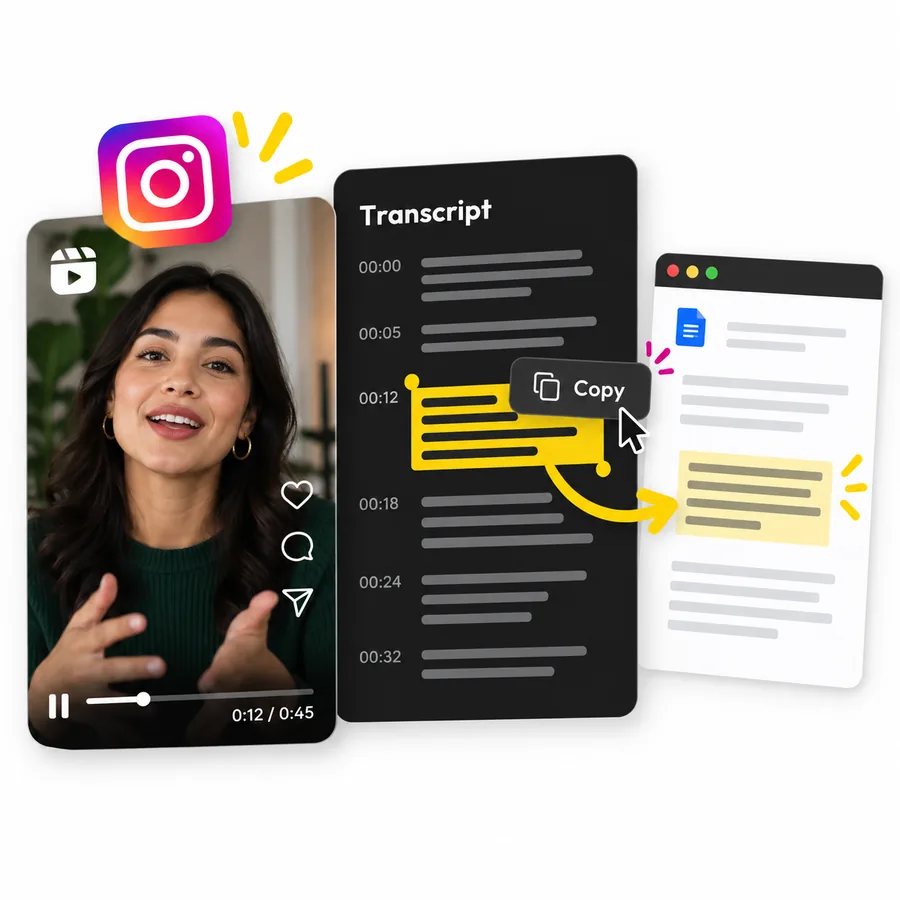
Read the transcript in the result area and copy it into your preferred document. Keep the recording nearby while you check unfamiliar names and specific claims. Corrections and rewriting can be done in the document where you plan to use the text.

Download TXT or VTT

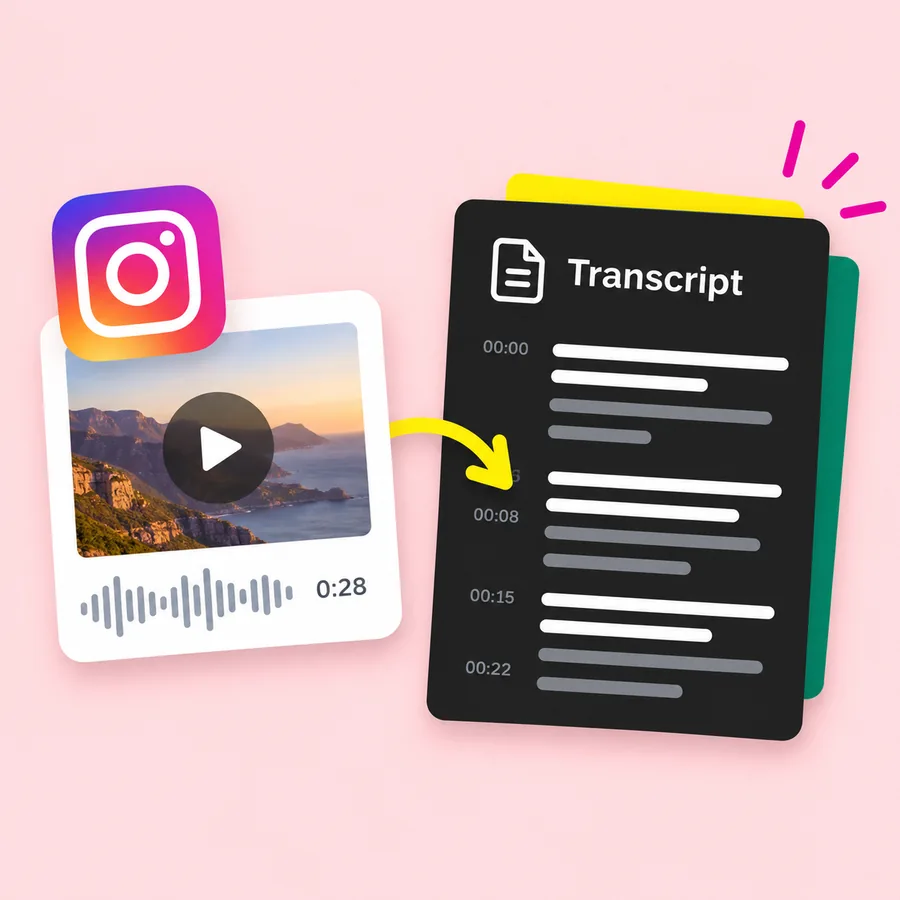
Save TXT when you need a plain text reference. Choose VTT for a caption workflow when the result includes timing data. Check the downloaded file before importing it into an editor; without returned timing data, there are no usable caption cues to export.

What Can You Create from Your Reel Transcript?

Use the text for a script reference, a caption draft, study notes, or an archive. A reels transcript generator provides the spoken material for your next task. You decide how to edit and arrange that material after downloading or copying the result.

01

A script reference

Compare what you planned to say with what you actually recorded. Mark phrases you want to keep, lines that need a clearer explanation, and ideas worth developing in another video.

02

A caption draft

Use a VTT export as a starting point when timing data is available. Review wording and cue timing in a compatible editor before including captions in a finished video.

03

Notes from a short lesson

Copy the transcript into a document, then add your own headings and takeaways. Keep direct quotations separate from your interpretation so you can return to the original wording later.

04

A text archive

Save a TXT file beside the original recording. Give the files matching names so you can find the source when reviewing an older campaign or lesson. These are ways to use your transcript; summaries and rewritten posts are work you do afterward.

Who Is This Instagram Transcript Generator For?

Creators, marketers, and students can use a written copy of the speech in their own recordings. Start with the task you need to finish. A transcript can be useful when you want to inspect wording, keep a reference, or prepare material for another format.

Creator reviewing a recorded lesson

Creators revisiting a recorded script

Upload your recording and read the text before preparing a follow-up. Highlight the opening line, examples, and closing request yourself. The transcript gives you material to review without having to type every sentence from scratch.

Marketers reviewing campaign language

Keep the spoken copy from a product explanation beside your campaign notes. Compare wording across your own documents, check whether a key detail was mentioned, and prepare revisions for the next recording. This workflow does not include automatic campaign analysis.

Students working with recorded explanations

Turn a recording you can use into a text reference for your notes. Add definitions, questions, and links to supporting material in your own document. Return to the recording whenever a passage depends on a demonstration, gesture, or visual example.

How to Use the Instagram Transcript Generator

Sign in, upload the recording, check the returned words, and save the format you need. For your first transcript, use a short video file with speech you can hear clearly. That lets you check both the result and the export before processing more recordings.

  1. Sign in and choose your source

    Create an account or sign in before submitting a transcription. New accounts get 5 free credits. Select File Upload and choose an audio or video file. If your recording is available through a direct HTTPS media link, you can use Paste Link instead. Keep the original Instagram post URL in your notes if you need a reference.

  2. Start the transcription

    Submit the source and let the task finish. Upload and processing time can vary, so leave the result page available while you wait. If the source cannot be read, check the file and try an accessible recording.

  3. Review and save your output

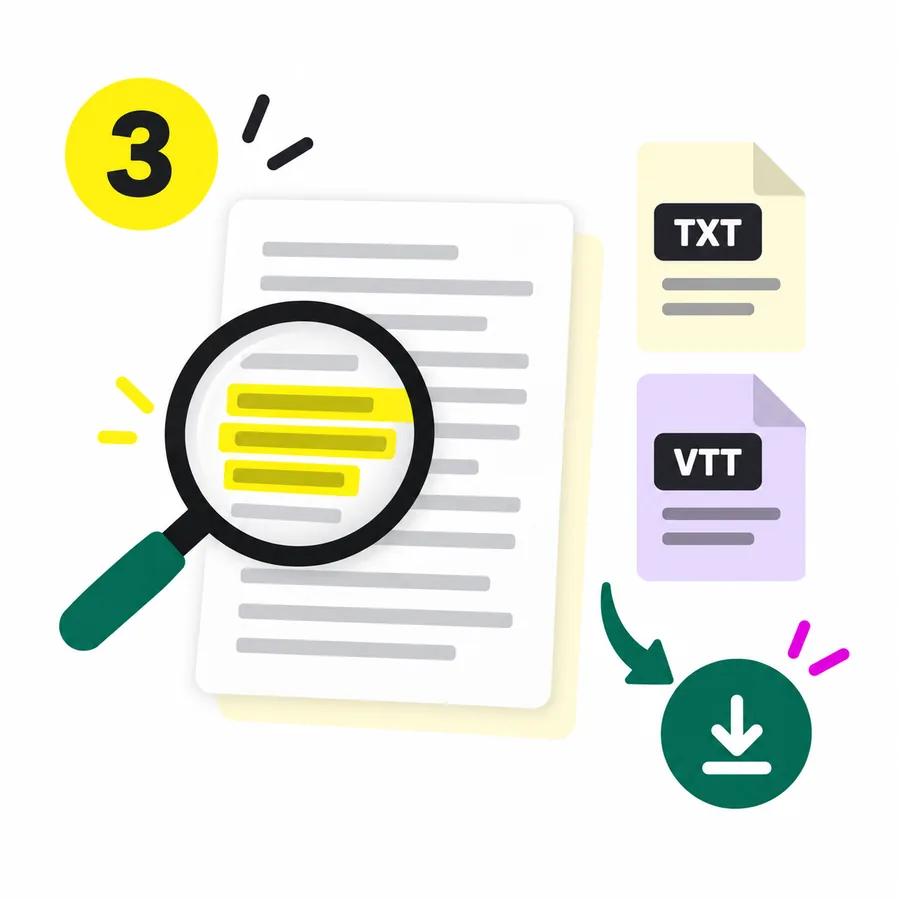
    Compare unclear passages with the recording, especially names, dates, and numbers. Copy the text into your document for corrections. Download TXT for a written reference or VTT when timing data is available. Open the saved file to confirm it contains the material you need.

Instagram Transcript Generator Pricing

Start with 5 free credits on a new account, then choose a one-time credit pack. TikTok Transcript uses a stated rate of 1 credit per 100 seconds. The amount of media you process matters more than the number of files you upload.

Basic

$9.9

990 credits

  • 990 credits
  • $0.01000 per credit
  • 1 credit per 100 seconds
  • One-time purchase
  • Smallest upfront purchase
Recommended

PRO

$29.9

3,700 credits

  • 3,700 credits
  • About $0.00808 per credit
  • 1 credit per 100 seconds
  • One-time purchase
  • Lower price per credit than Basic

Business

$49.9

12,400 credits

  • 12,400 credits
  • About $0.00402 per credit
  • 1 credit per 100 seconds
  • One-time purchase
  • Lowest price per credit

For a recording lasting exactly 300 seconds, the stated rate corresponds to 3 credits. This example does not establish how partial billing units are rounded. Check the charge that applies to your recording rather than assuming every Reel costs the same amount.

If you are looking for an Instagram transcript generator free trial, the starting allowance is 5 credits after account creation. It is a limited allowance, and sign-in is required. Choose a pack based on the amount of transcription you expect to need.

Instagram Transcript Generator FAQ

Check the input requirements, free allowance, and download options before you start your first transcript. These answers describe the file-based workflow available in TikTok Transcript. They also explain what to expect if you arrived looking for a link-only tool or a specific subtitle format.

Can I get a transcript from an Instagram reel?

Yes, you can start with a video or audio file from a Reel that you have available to upload. Sign in, choose the file, and submit it for transcription. The tool returns the spoken content as text, which you should review against the recording. This workflow does not guarantee that pasting an Instagram post URL will retrieve the video. If you only have a share link, obtain a media file you are allowed to use before proceeding. Keep the source with your notes so you can check context later.

How do I download the transcript of an Instagram video?

After transcription finishes, use Download TXT to save the text or Copy text to move it into a document. A VTT download is also available for results that include timing data. Open the file after saving it and check the beginning, middle, and end against the recording. Use TXT for reading and editing in your preferred writing app. Use VTT when your next tool accepts that caption format. An Instagram transcript downloader should match the output you need; downloading text is different from downloading the source video.

Is there an Instagram transcript generator free option?

New TikTok Transcript accounts receive 5 free credits after sign-up. The stated usage rate is 1 credit per 100 seconds, and paid credit packs are available after the starting allowance. Sign-in is required to submit a transcription. The allowance is intended as a way to try the workflow, not a promise of unlimited free use. Start with a short recording and check the result before processing a larger collection. Read the pricing section for pack amounts, and check your account balance when deciding what to transcribe next.

Can I get an Instagram transcript from link input?

You can submit a reachable HTTPS audio or video source, but an Instagram post URL is not a guaranteed input. A post page and a direct media address are different. The reliable starting point described here is a video or audio file you already have. If a link cannot be processed, use the upload option with an accessible recording. This page does not promise access to private posts or restricted videos. Choose your input before starting so you do not confuse a source-access problem with a transcription result.

How do I transcribe an Instagram video to text?

Upload the recording, sign in, and start the transcription. When the result arrives, compare the text with the original audio before copying or downloading it. Give extra attention to names, numbers, and phrases that sound unusual. For a Reel with music or overlapping speech, use your own listening judgment when checking an uncertain passage. The output is a draft for review, not a verified quotation. Keep any corrections in your working document and save the original recording so you can revisit the words in context.

Can I export SRT, translate, or summarize my Reel?

The current workflow provides copied text, TXT downloads, and VTT downloads when timing data is available. It does not include an SRT export, a translation control, or an automatic summary feature. If you need a summary, start with the checked transcript and write it in your own document. If your editor requires SRT, you will need a separate conversion step and should verify the resulting timing. Choose the tool and format for your actual destination before processing a large set of recordings. Do not assume every transcript format is interchangeable.

Start with Your Instagram Video File

Turn a recording you already have into text you can check, copy, and save. Open the Instagram Transcript Generator workflow with a short recording first. Review the returned words against the audio, then keep the transcript in the format that suits your next task.

Sign in to use your account credits. New accounts get 5 free credits, and one-time packs are available when you need more.